HyperFrames by HeyGen: What It Is and How to Use It
HyperFrames is HeyGen’s video toolset for AI agents. Its open-source framework builds video compositions with HTML, CSS and JavaScript, while HyperFrames Studio provides a desktop environment for working on videos with agents. It is separate from Hyperframe at hyperframe.ai, a business-video platform. This guide draws on official documentation checked on October 29, 2026. It is not a hands-on review, and SnapToClip is not affiliated with either product.
Hyperframe or HyperFrames: which tool do you mean?
The spelling matters. HeyGen calls its toolset HyperFrames, with an s. Hyperframe.ai is a separate product that assembles business videos from an organization’s approved footage. A search for hyperframe can also surface unrelated software and construction products. Check the domain before downloading anything or entering payment details.
| Product | Official starting point | Main workflow |
|---|---|---|
| HyperFrames by HeyGen | hyperframes.heygen.com | Agent-assisted video composition and rendering |
| Hyperframe | hyperframe.ai | Business videos assembled from approved footage |
What can you make with HyperFrames?
HeyGen describes uses including product videos, animated explainers, charts, captions and social clips. The framework gives the agent a way to arrange and animate a composition, rather than asking it to operate a conventional editing timeline.
Think of a product introduction with moving headings, screenshots and narration. The composition controls when those elements appear. Any generated footage, voiceover or music used within it still has its own source and usage conditions.
HyperFrames Studio and the open-source framework
The current official homepage offers HyperFrames Studio for desktop. Start there if you want the app experience. The open-source repository is a separate entry point for developers who want to inspect the code or build a local rendering workflow.
For the CLI workflow, the repository lists Node.js 22 or later and FFmpeg. It documents npx hyperframes init my-video to create a project, npx hyperframes preview to preview it, and npx hyperframes render to export MP4. These are setup instructions from the project, not commands we tested for this article.
How to get started with HyperFrames
Choose a small first project: a short title sequence, an animated chart or a product introduction using assets you already have permission to use. State the intended length, aspect ratio, message and output format before asking an agent to build it.
Review the preview before rendering. Check text, timing, image crops and audio, then inspect the exported file. If the project includes externally generated media, check that media as well as the surrounding composition. A successful render does not establish that every factual claim or asset licence is correct.
Is HyperFrames free?
The official repository is licensed under Apache 2.0. That applies to the open-source code; it does not make every service in a video workflow free. A coding agent, generated footage, voiceover, licensed assets or cloud rendering may introduce separate charges.
Do not assume the desktop app, hosted services and third-party models share the same terms. Follow the official links below and check the relevant service before paying. This guide does not quote a Studio subscription price.
Can HyperFrames turn a photo into a video?
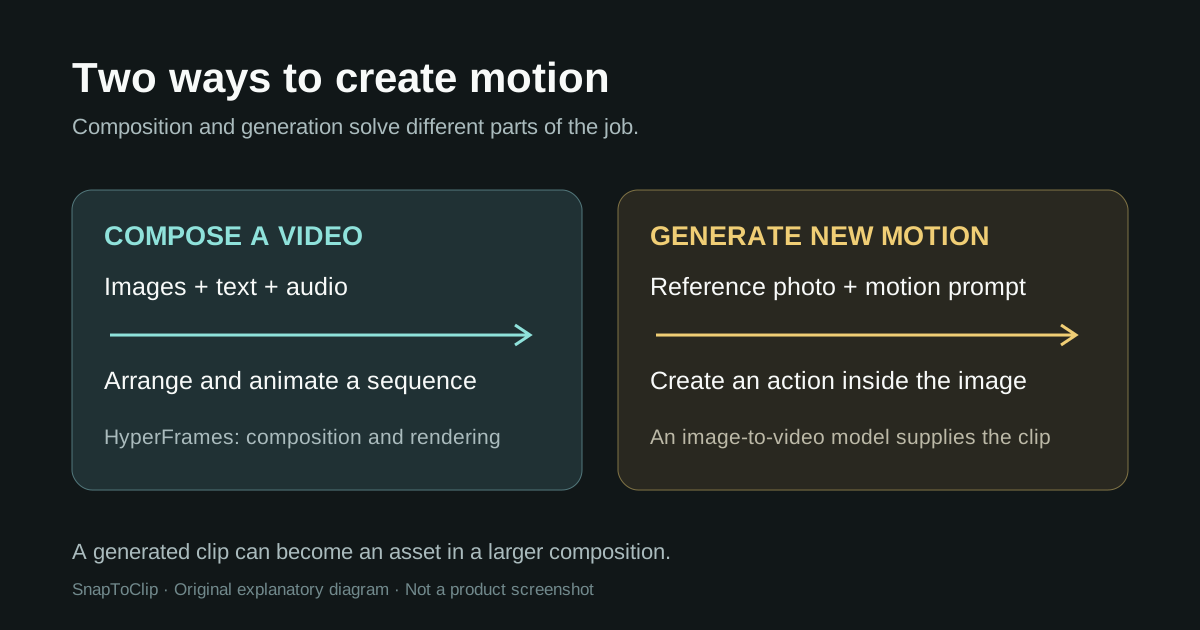
A photograph can be part of a video composition. Moving the image, changing its scale and adding text can create an animated presentation of that photograph. Generating a new action inside the picture, such as a pet turning its head, is a different operation: it needs a suitable image-to-video model or another motion-generation step.
Choose based on the result you need. A timed sequence of photos, titles and graphics calls for composition. New movement within a reference photo calls for image-to-video generation. A project can use both, with the generated clip placed inside the final composition.
Where does SnapToClip fit?
SnapToClip focuses on photo-based video workflows and scene templates. It does not host HyperFrames or provide its HTML rendering engine. Read our photo-to-video guide to compare simple photo animation with AI-generated scene motion.
AI generation on SnapToClip remains subject to service availability and safety checks. Check the studio’s availability notice before uploading or purchasing credits. This article is a guide to the workflow, not a claim that either tool has passed a comparative quality test.
Common questions
Is HyperFrames made by HeyGen? Yes. HeyGen’s official homepage and help center identify it as a HeyGen project. Hyperframe.ai is a different product.
Do I need to write code? Agents can assist with authoring. The CLI route still involves project files and terminal commands; the Studio offers a desktop entry point. Choose the workflow that matches your comfort level.
Can it export MP4? The open-source CLI documents MP4 rendering. Review the exported file rather than judging only the preview.
Is this an official HyperFrames tutorial? No. This is an independent, documentation-based guide by SnapToClip. Use HeyGen’s documentation for current installation instructions and support.
Find your scene.
Browse a template, then check creation availability in the homepage studio.
Explore the looks ↗