Magnific Move: What It Is and How It Works
Magnific Move is an agent-based motion graphics editor announced by Magnific on October 28, 2026. It turns written directions into an editable composition and accepts revisions in natural language. Magnific says Move uses HeyGen’s HyperFrames framework. This independent guide summarizes official information checked on October 30, 2026; it is not a hands-on review, and SnapToClip is not affiliated with Magnific.
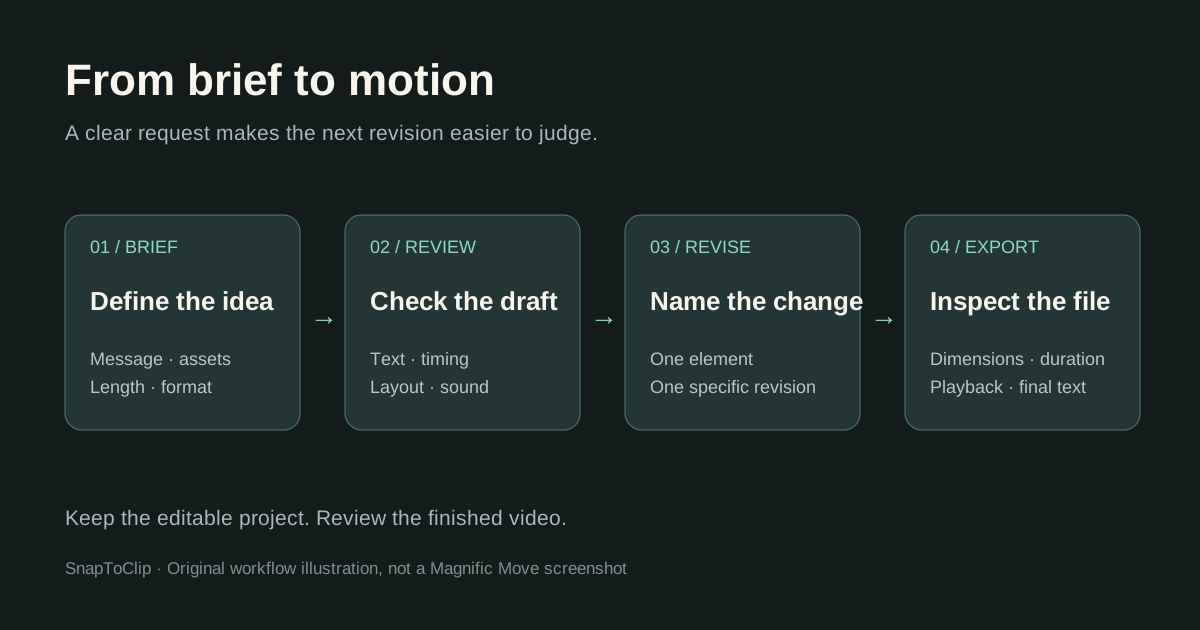
What does Magnific Move do?
The launch announcement describes an editor for motion graphics, with templates, Brand Kit support and versioned edits. Rather than rebuilding an entire project for every change, the intended workflow is to describe the revision and keep working on the composition.
A useful way to evaluate this kind of editor is to ask what must remain editable. If a headline, logo and chart need separate timing changes, you need control of those elements, not just a finished clip that looks attractive.
How is Move connected to HyperFrames?
Magnific identifies HyperFrames as the underlying framework and adds its own editing environment around it. The HyperFrames repository describes HTML-based video compositions, previewing and MP4 rendering. The framework and the hosted Magnific product are separate entry points; installing the former does not establish access to the latter.
If you want to work with local project files, read our HyperFrames guide. If you want to evaluate Move, start with Magnific’s own product entry and account information.
A practical prompt for your first motion graphic
The following is an original example brief, not a tested result: Create a 10-second vertical introduction for a fictional coffee brand called North Cup. Use a dark green background and cream text. Show the brand name first, bring in the supplied product photo, then end with the words Find your daily ritual. Keep the logo readable and use gentle transitions.
Review the first version against that brief. Is the name spelled correctly? Is the product visible long enough? Does the final line stay on screen long enough to read? Check those specific points before asking for a different overall style.
For a revision, try: Keep the colors and product image unchanged. Bring the product in one second earlier and hold the final line for three seconds. This makes the requested difference easy to check. The example illustrates how to write feedback; it does not promise a particular output.
What can you export?
Magnific’s announcement lists MP4 export at 1080p or 4K, with compositions up to 180 seconds, and describes adapting layouts to different aspect ratios. These are published capabilities, not export settings we independently tested.
Before delivering a video, open the exported file and check its dimensions, duration, text and audio. A preview can look correct while an export has a clipped title or an unexpected ending. Keep the editable project as well as the delivery file.
Is Magnific Move free?
We have not verified a Move-specific price or a credit cost per revision. Check your account’s access and usage information before generating. A general platform subscription does not by itself tell you what a particular project will cost.
For budgeting, distinguish a first draft from the finished project. List any generated footage, narration, music and expected revisions you will need, then verify how the service bills each part. Do not assume every edit or external asset is included.
Motion graphics or image-to-video: which do you need?
Choose based on the task. Moving a headline across a product photo is a composition problem. Asking a pet in that photo to turn its head requires new scene motion. A project may use both: generate a short shot first, then place it inside a branded sequence.
SnapToClip focuses on photo animation and short AI scene videos. It does not host Magnific Move or provide its project editor. Our photo-to-video guide explains those smaller workflows; use the studio’s displayed model and credit price when evaluating a generation.
| Your task | Workflow to evaluate |
|---|---|
| Change the timing of a logo, title or chart | Editable motion graphics |
| Create a new action within a photograph | Image-to-video generation |
| Build a sequence with titles and generated shots | Combine generation with composition |
Questions before you start
Is this the Magnific image upscaler? No. Move is the motion graphics editor discussed here. Check that the tool you open matches the task you intend to do.
Are the prompts above tested in Move? No. They are original examples of a clear brief and a specific revision. We have not run a paid Move project for this guide.
Does SnapToClip use Magnific Move? No. This is an independent editorial guide. The official announcement and framework documentation are linked below.
Find your scene.
Browse a template, then check creation availability in the homepage studio.
Explore the looks ↗