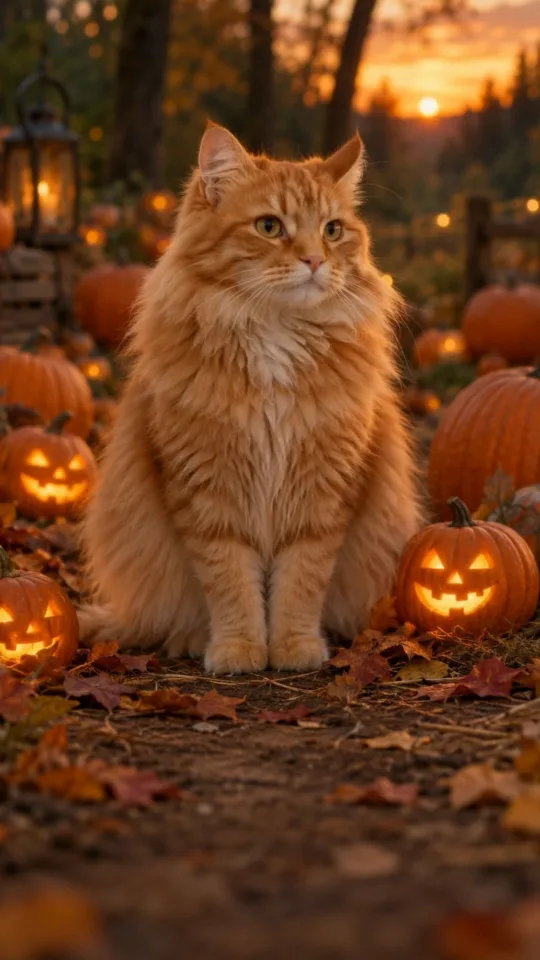
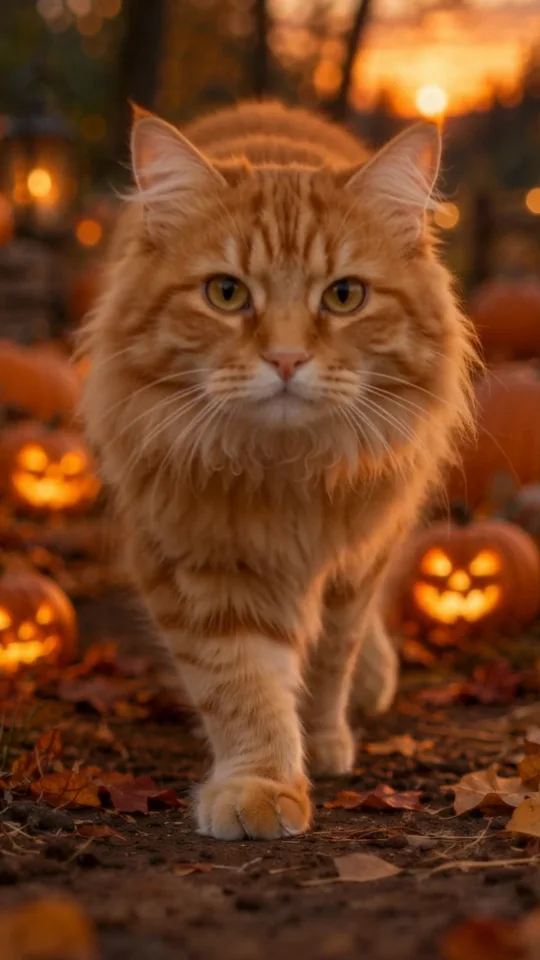
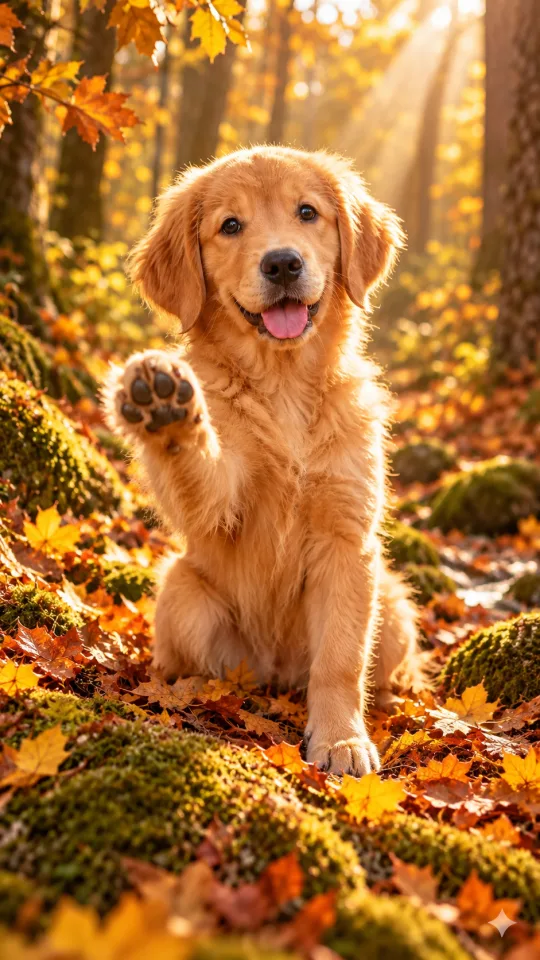
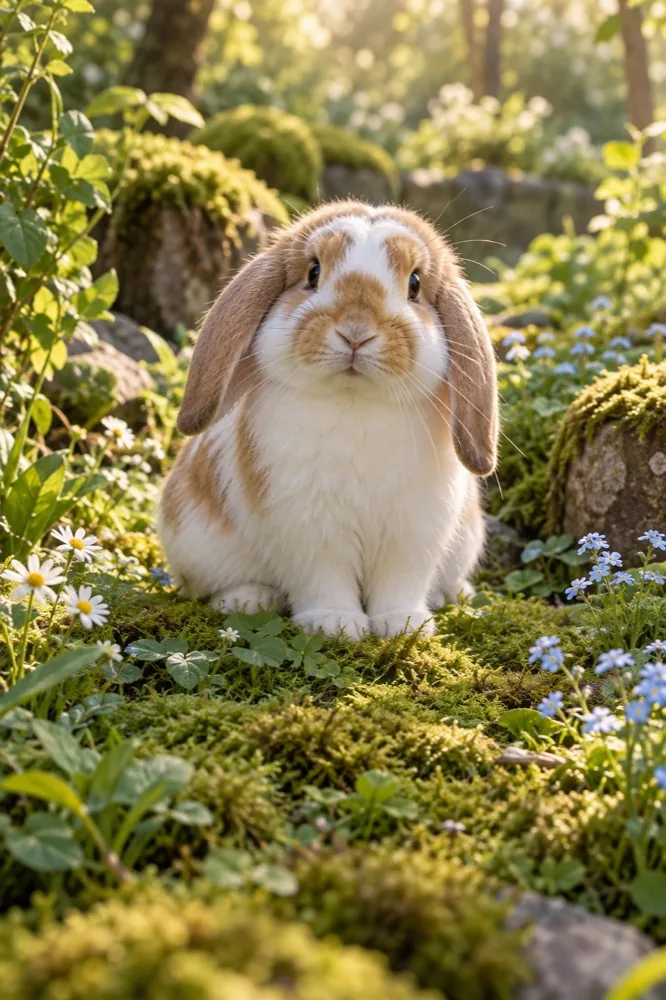
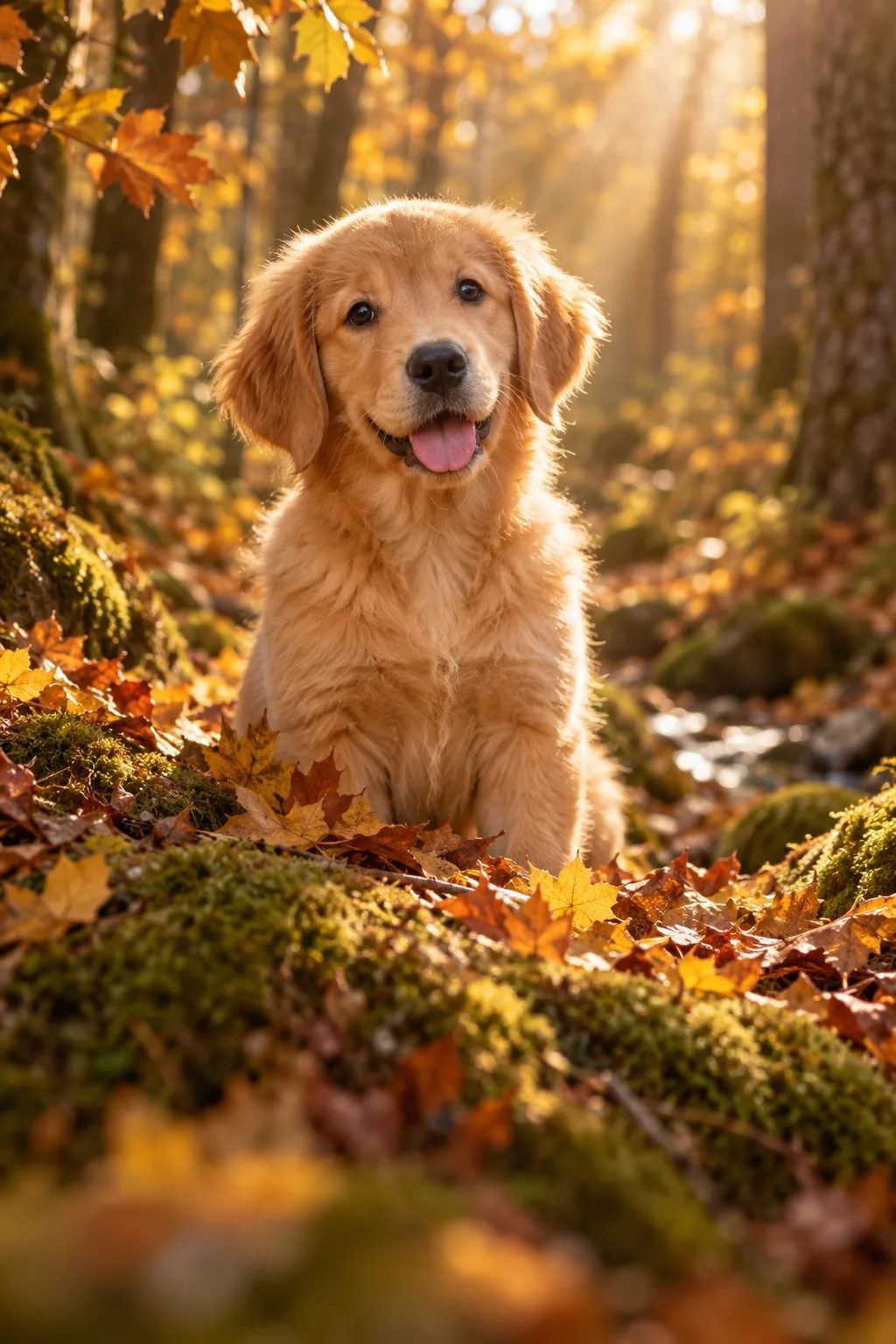
Compare small, believable movements with more cinematic scenes before you upload anything. Every option makes the same five seconds of vertical video from one approved photo of your dog or cat.
Updated 27 October 2026 · Two frames come from reviewed model runs; three are illustrative concepts, labelled as such.
Compare five pet video styles
The looks differ in how much they change. A head tilt keeps the room you photographed; a seasonal scene replaces it. Pick by how much of the original photo you are willing to lose.
Your source photo affects the result. Check these four details before choosing a look.
Face, eyes and both ears
The model needs a clear view of your pet’s head. If an ear is cut off at the frame edge or hidden by a hand, expect the ear to reappear in the wrong place. A photo where the pet is looking at the camera, or just past it, works with every look on this page.
One pet, one clear subject
Two animals in one frame can lead to mixed features or distorted bodies. If you want both pets, generate them separately and join the clips; that is more reliable than asking one five-second shot to keep two faces apart.
Light that still shows the markings
Backlit photos and photos shot against a bright window lose the fur pattern that makes the animal recognisable. Flat, even light — indoors near a window, or outdoors on a bright but overcast day — keeps the markings readable after the model has redrawn them.
Room where the movement goes
A close-up needs empty space in front of the nose. A paw lift needs the front legs inside the frame. A head tilt needs a little air above the head. Check the photo against the look you picked before uploading, not after the clip comes back.
What makes a result stop looking like your pet
Heavy accessories, hands covering the animal and busy backgrounds can make it harder to preserve your pet’s appearance. Nothing here is a guarantee — an AI video can still change details it was told to keep.
From pet photo to five-second clip
Choose the look. Read the template guide for the movement you want, then open the studio from that page so the prompt arrives filled in.
Upload one photo. JPG, PNG or WebP up to 20 MB, one pet, that you own or have permission to use. Sign in and pass the safety check.
Let the studio pick the model. There is nothing to choose: one photo silent runs on Wan 2.2, one photo with sound on Kling 2.6, two to four photos on Vidu Q4. The model is named in the review panel before a credit is spent.
Review before sharing. Check the face, the ears and the paws. If the clip drifts, the template guide lists the sentence to change — usually a smaller movement or an explicit “exactly as in the reference photo”.
You get a vertical 9:16 MP4, about five seconds long and up to 1080 × 1920 depending on the model, silent unless you chose sound. A failed step returns the credits it reserved; you can follow the live status of any task in the studio.
Free browser animation or paid AI video
Photo animation · free, no scene change
Your original photo stays your original photo. Preset motion is layered on it in the browser and you can add text, which is enough for a birthday card or a wedding-table loop. This mode moves the original image rather than generating a new face or scene. Safety review is still required.
AI video · credits, new movement
The model generates the movement, and on the cinematic looks it generates the scene as well. That is what lets a snapshot become a short film, and it is also where the likeness risk lives. Both routes keep the same five seconds and the same vertical frame.
One photo is enough. Kling 2.6 and Wan 2.2 all start from a single pet photo. Two to four photos go to Vidu Q4, which is what people use when they want the same pet from two angles or two pets in one clip.
Can I make a pet video without spending credits?
Yes, if preset motion is acceptable. Free photo animation runs in your browser, keeps your original photo and adds a small amount of motion plus optional text. It does not generate a new scene. AI scene generation spends credits and needs an account and a safety check first.
Will the result still look like my pet?
Usually, but it is not guaranteed. These models are asked to preserve the subject and they often do, yet small details move: an ear angle, an eye shape, the exact pattern on the fur. Subtle scene changes may help preserve your pet’s appearance, so start with the head-tilt template.
What photo works best for a dog or cat?
One pet, face on or slightly turned, eyes and both ears visible, even light, nothing crossing the face. A JPG, PNG or WebP up to 20 MB that you own or have permission to use. Group photos and photos of a pet mid-run both fail more often than a plain portrait that already looks like the animal.
How long is the clip and what shape is it?
Five seconds, vertical 9:16, H.264 MP4 at up to 1080 × 1920 — the model that runs sets the exact pixel size. Vertical is deliberate: pet clips get shared to feeds that are already vertical, and cropping a square video into that shape wastes the sides of the frame.
What does one pet video cost?
One credit for a five-second silent clip and two credits when you add original sound. These prices apply to standard mode. Optional Seedance 2.0 Fast and Seedance 2.5 upgrades cost 2 and 4 credits respectively. Credit packs are one-time: 10 credits for $9.99, 30 for $24.99 and 80 for $59.99, with no subscription.
What to know before you create
A pet video maker is only as good as the photo it starts from. SnapToClip turns one clear photo of one dog or cat into five seconds of vertical video, keeps standard image-to-video models at one credit price, with optional Seedance upgrades, and labels which preview frames are real tested output rather than concept art. Start with the gentle head tilt to check whether the likeness holds, then move to the cinematic looks once you know your photo survives generation.